Creating a Substitute Form in eWeb
eWeb comes with a set of baseline forms. Create a substitute form when you want to replace a baseline form with a custom version of that form.
This topic covers finding the baseline form you want to modify, creating a substitute form with a modification, and checking eWeb to make sure the substitute form appears.
Creating a Substitute Form in eWeb
There are 5 major steps to creating a substitute form in eWeb:
- Find the form's key in eWeb.
- Use the form key to find the same form in iWeb.
- Create a substitute form.
-
Reset IIS on your NetForum server.
Note: You must be an administrator on the server to perform this step.
- Check eWeb for the change.
Find the Form's Key
- Log in to eWeb and navigate to the form you want to change.
- Find the form key.
- If the form is a web page, you can find the key in the URL querystring.
- If the form is a pop up, you can find the key in the page properties:
- Open your eWeb page in Internet Explorer and open the pop up.
- Right-click on the pop up and choose Properties. The Properties pop up opens.
- Click in the Address (URL) field, and scroll with your keyboard arrows until you see a value that looks like this: http://entdevweb01.corp.avectra.com/NFEP20140100/eWeb/ DynamicEditModal.aspx? modal=yes&formkey=502811bb-9e7f-4949-9e21-b8b0ed20fe36&cph_key=7c0f1c9a-54ac-4301-8a6f-8b38db94c513&cph_cst_key=8126ad94-88f6-43f1-9e29-da1f49fbdfcf&key=7c0f1c9a-54ac-4301-8a6f-8b38db94c513
Copy the value after formkey= and before &, this is the form key of the pop up.
Find the form key in the Address URL field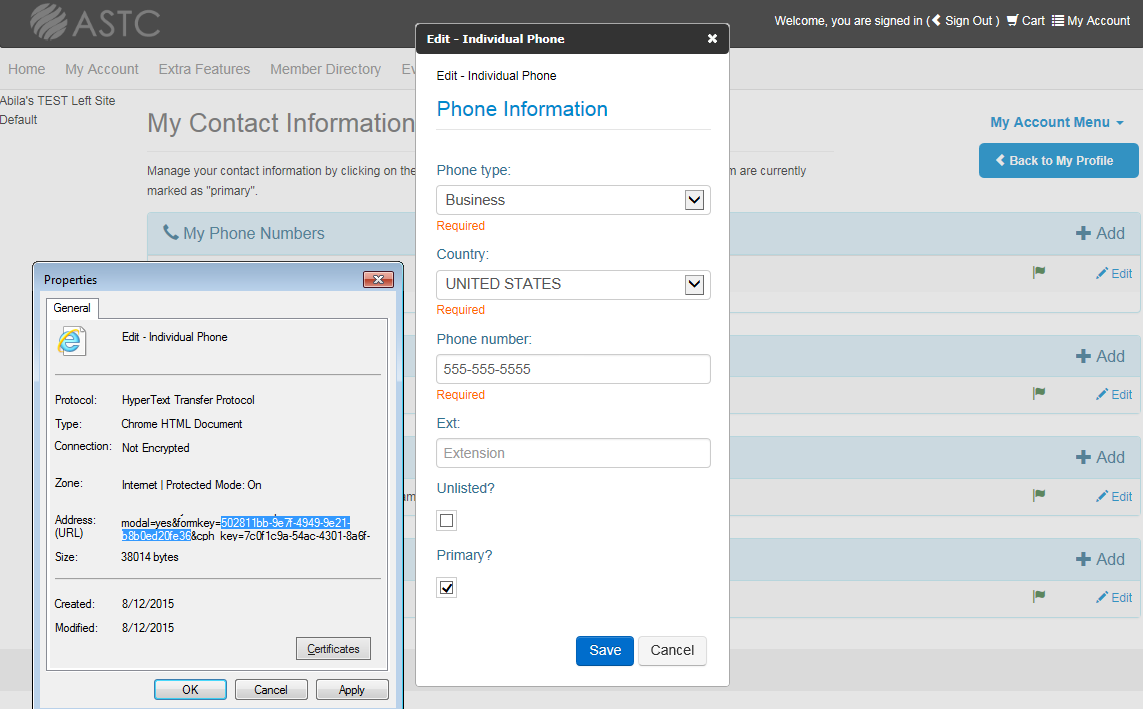
Tip: The URL is long, click in the field that displays the URL and use your keyboard down arrow to scroll to the formkey.
- Use the form key to find the same form in iWeb.
Find the Same Form in iWeb
- Sign in to iWeb.
- Go to Modules > Toolkit > Forms > Find Form.
- In the Form Key field, paste the form key you copied in the "Find the Form's Key" section.
- Click the Go button. The form Profile page opens.
Create a Form Substitute
- From the Profile Page, click the
 substitute this form icon. The Add Substitute page opens.
 - Enter a description for the new substitute form in the required Substitute Form Description field.
- Click the Add Substitute button. Once you get the message "The Substitute Form was Created Successfully," close the Add Substitute page to return to the form Profile page.
- Refresh the Profile page.
- Go to the Primary tab > Form Substitute child form. Your new substitute form appears in the child form.
- Click the go to
 arrow beside your new substitute form. The Profile page for the substitute form opens.
 - Modify the controls on this new form. Go to the More tab > Controls tab > Designed Form Controls child form. Find the Control you want to modify and click the edit
 icon beside the Control Name. The Edit – Dynamic Form Control page opens.
 - Make your changes and click the Save button to save your changes and return to the Profile page.
Reset IIS
Note: You must be an administrator on the server that runs NetForum to reset IIS. If you are not an administrator, you can skip this procedure, but then you have to wait for the server to run a scheduled update.
- Access the server that runs NetForum.
- Go to the Windows command prompt.
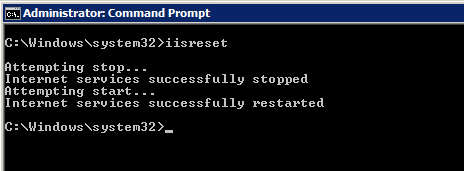
- Enter iisreset. The IIS server will stop and restart, then the command prompt will reappear.
Check eWeb for the Change
- Refresh the original eWeb page. Eweb returns to the log in page.
- Log in to eWeb and navigate to the form you changed.
- Look at the control you modified and check that the modification appears. If you see the modification, eWeb is displaying the substitute form.