Add and Edit Address
OR
OR
Using the Addresses child form on an Individual profile, you can add or update address information for the Individual profile.
The following section describe the steps to add and edit an address information for an individual in the NetForum.
Adding Address
To add an address:
- Follow the path listed above.
- Click the Add icon. The Add Address page opens.
- Fill in the fields as described in the table below:
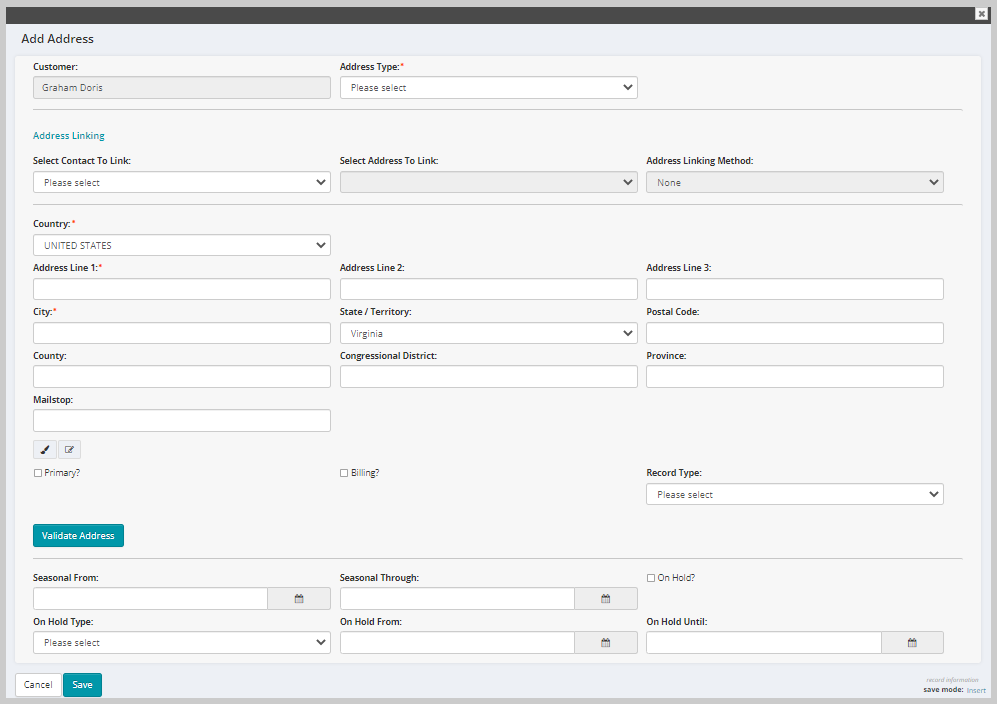
| Field Name | Required? | Description |
|---|---|---|
| Customer | Required | This field defaults to the name of the customer. |
| Address Type | Required | Select an address type from the drop-down list. Example options include Billing, Home, Other, Shipping, or Work. |
| Select Contact To Link | Optional | If this address belongs to a related contact, then select that contact (related Individual or related Organization) from the drop-down list. |
| Select Address To Link | Optional | This field is populated with the addresses of the contact that you selected in the Select Contact To Link field. |
| Address Linking Method | Optional | Select an address linking method from the drop-down list that you wish to use. This drop-down list includes Linking and Defaulting options. |
| Country | Required | Select a country from the drop-down list. The remaining address fields will update based on the country selected. |
| Address Line 1 | Required | Enter the address in this field. |
| Address Line 2 | Optional | Enter the address in this field. |
| Address Line 3 | Optional | Enter the address in this field. |
| City | Required | Enter the city name in this field. |
| State / Territory | Optional | Enter the state/territory name in this field. |
| Postal Code | Optional | Enter the Postal Code in this field. |
| County | Optional | Enter the county name in this field. |
| Congressional District | Optional | Enter the congressional district in this field. |
| Province | Optional | Enter the province name in this field. |
| Mailstop | Optional | Enter the four-digit code after the zip code in a US postal address. |
| Primary | Optional | Check this box if you want this address to be the primary address. |
| Billing | Optional | Check this box if you want this address to be the billing address. |
| Record Type | Optional | Select an address record type option from the Record Type drop-down list. |
| Validate Address | Optional | You can validate the address using the Validate Address button next to the Record Type field. |
| Seasonal From | Optional | Set a seasonal from date if you wish to indicate this is a seasonal address (only valid for a particular duration, starting from the mentioned date). |
| Seasonal Through | Optional | Set a seasonal through date if you wish to indicate this is a seasonal address (only valid for a particular duration, ending on the mentioned date). |
| On Hold? | Optional | Check this box if you want this address to be placed on hold. |
| On Hold Type | Optional | Select an on-hold type from the drop-down list. Example options include Restricted, Out of Country and Undeliverable. |
| On Hold From | Optional | Set the on hold from date if you have selected the On Hold? checkbox. |
| On Hold Until | Optional | Set the on-hold until date if you have selected the On Hold? checkbox. |
Click the Save button to add an address to the child form and return to the Profile. Click the Cancel button to return to the Profile without saving the address.
Editing Address
To edit an address:
- Click the Edit icon next to the address record on the Addresses child form. The Edit Address form displays.
- Edit the appropriate details in the relevant fields.
- Click the Save button to update the address details. Click the Cancel button to return to the Profile without saving the address. Click the Delete button to delete the address record.
