Add and Edit Phone
OR
OR
Using the Telephone numbers child form on an Individual profile or an Edit Events Registrant form, you can add and update phone information for the Individual record.
The following section describes the steps to add and edit phone information for an individual in NetForum.
Adding Phone Information
To add phone information:
Follow the path listed above.
Click the Add button. The Add Phone form opens.
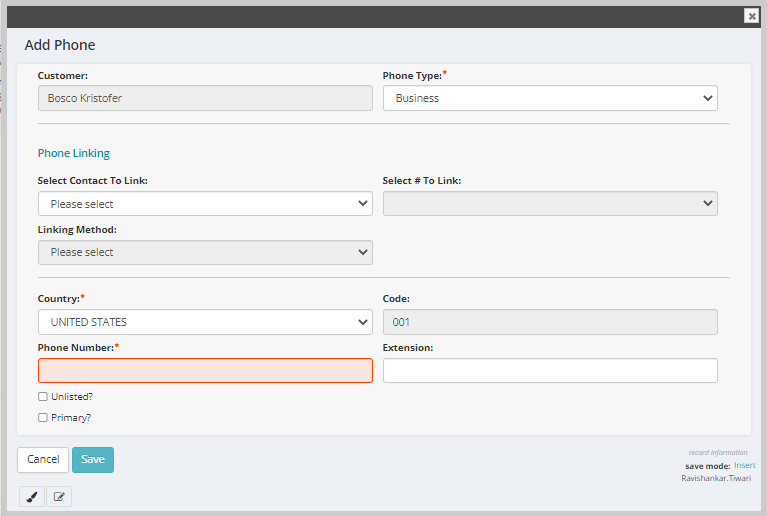
Fill in the fields for the populated customer name according to the table below:
| Field Name | Required? | Description |
|---|---|---|
| Customer | Read Only | This field automatically populates the customer’s name and cannot be edited. |
| Phone Type | Required | Select the Phone type from the Type drop-down field. |
| Select Contact To Link | Optional | If this phone belongs to a related contact, then select that contact (related Individual or related Organization) from the drop-down list. |
| Select # To Link | Optional | This field is populated with the phone number of the contact that you selected in the Select Contact To Link field. |
| Linking Method | Optional | Select Linking or Defaulting to associate the selected individual’s or organization's phone number with the individual's profile. Select None to enter a new number unlinked to the individual or organization profile. |
| Country | Required | Select the country of origin for the phone number. |
| Code | Read Only | This field auto populates the country code of the selected country and cannot be edited. |
| Phone Number | Required | In the Phone number field, enter the phone number. In the case of linked organization phone numbers, this field will auto complete with phone information from the organization profile. |
| Extension | Optional | In the Extension field, enter an extension, if one is necessary. |
| Unlisted | Optional | Click this checkbox if this is an unlisted phone number and it should remain private. |
| Primary | Optional |
Click this check box to indicate whether this phone number is a primary. Note: If you are adding the phone information for the first time, then the Primary checkbox will be selected and read-only by default. |
Click the Save button to save your changes and return to the profile. Click the Cancel button to return to the profile without saving your changes.
Editing Phone Information
To edit phone information:
-
Follow the path listed above.
-
Click the Edit icon next to the phone record on the Telephone numbers child form.
Or
Click the Edit icon on the Phone field of the Edit Events Registrant form.
-
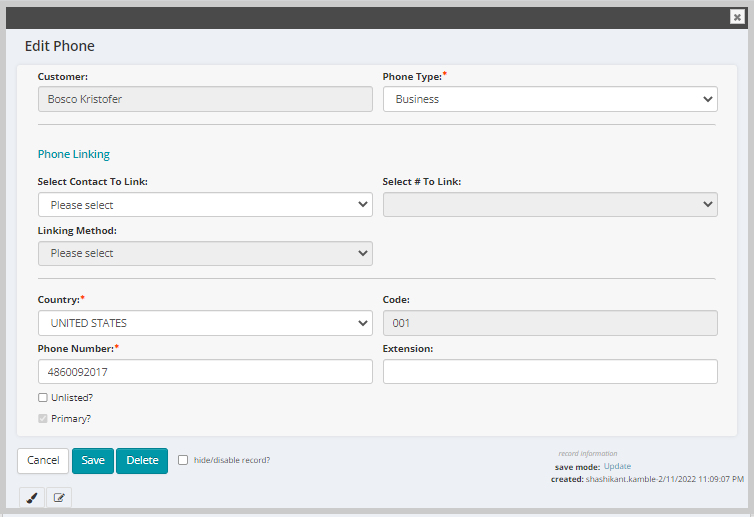
The Edit Phone form opens.
-
Edit the appropriate details in the relevant fields.
-
Click the Save button to update the phone information. Click the Cancel button to return to the Profile without saving the phone information. Click the Delete button to delete the phone record.