Migrating Existing Documents
When upgrading to the Enhanced Document Storage solution, the customer’s legacy stored documents and files must be migrated to the new Document Storage solution. To complete this migration process, a conversion program has been developed. This program uses a Document Migration Tool, which is designed to assist in the migration of files from legacy local storage to the new storage provider.
The NetForum Enterprise upgrade team will run the conversion program for the customer to upgrade the customer’s document storage.
The Document Migration Tool is a command line function that is performed using the utility distributed with NetForum Enterprise releases.
Where the App is Located
Locate the zip file of the release and unpack it. In the zip file, you will see InstallApp zip. Unpack the InstallApp zip. Within the new InstallApp folder, you will find a utility folder. Inside the utility folder a NF console app will be available.
Steps to Execute the Document Migration Tool
-
Open the file explorer.
-
Navigate to the utility folder of the release.
-
Edit the NF.exe.config file updating the required entries.
-
Fill in minimum required section:
-
configSections
-
connectionStrings
-
appSettings
-
commonRoot
-
moveFolder (if finalize action is set to move)
-
-
StorageConfiguration
-
-
See the Configuration Options section in the Setting Up the Enhanced Document Storage Solution topic for more information.
-
-
Open the command line prompt.
- Navigate to the utility folder of the release.
-
Run the executable with the desired parameters.
-
Minimum required parameter is action
-
EX: NF.exe doc -a convert
-
See Command Line Arguments for more information
-
Getting Help with the Commands
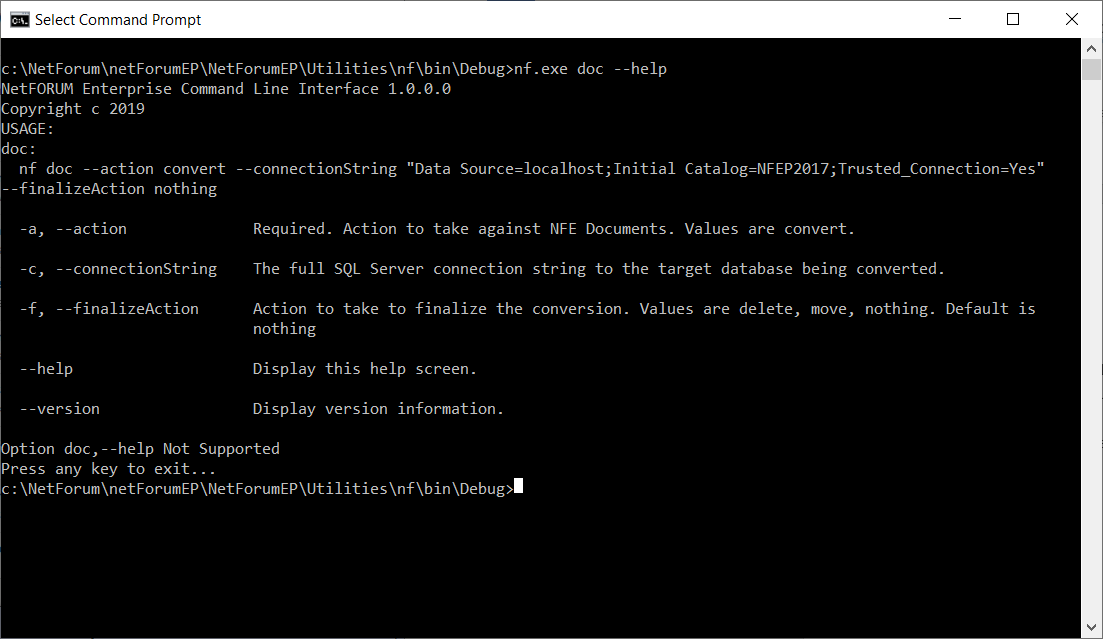
The NF utility has some built-in help at the command line level. At any point while in the command prompt and in the utility directory, you can run the following command:
NF.exe doc –help
The command will return a screen (similar to the one below) with details about the command line arguments and how to form the command.
COMMAND LINE ARGUMENTS
There are two different command line arguments that can be passed with the command:
Argument Name: Action
Short Argument: a
Long Argument: action
Values: convert
Default: N/A
Example: -a convert
Required: Yes
Argument Name: Finalize Action
Short Argument: f
Long Argument: finalizeAction
Values: delete, move, nothing
Default: nothing
Example: -f delete
Required: No