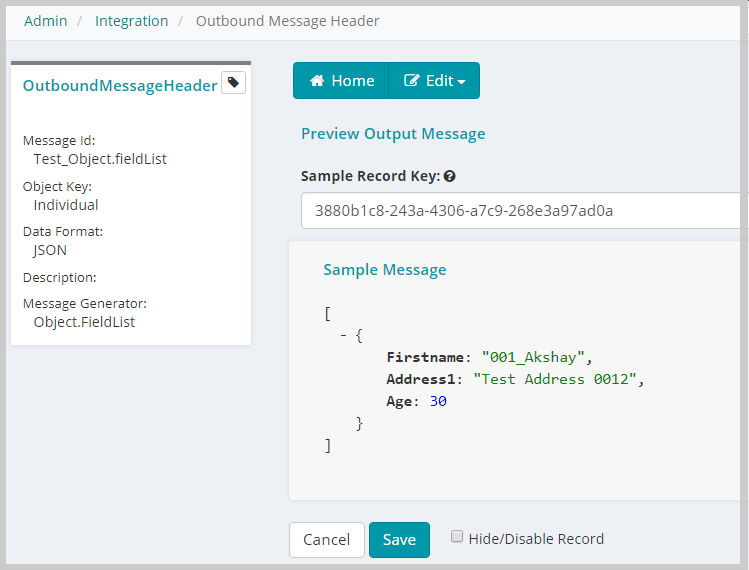
Adding Webhook Message using Outbound Message Header
To add webhook messages:
- Login To iWeb.
- Go to Admin module and click the Integration group item to expand.
- Form the expanded list, click the Integrations group item link. The Integrations profile displays with Integrations, Outgoing Webhooks, and Webhook Messages child form.
- On the Webhooks Messages child form, click
 icon. This will display the Add Outbound Message Header form.
- This form contains fields like Message Id, Object Key, Data Format, Description, and Message Generator fields.
- Message ID: Enter the message name as desired. The same Message ID should be entered in the Message Type field in the Integrations Settings child form of the Outgoing Webhooks Instance.
- Object Key: This field contains list of all the objects available in NetForum. Select an appropriate option for your message.
- Data Format: This field contains four options (JSON, XML, TEXT, and HTML) for the message formats, select any format option as required for your message.
- Message Generator: This field contains four options (Object.Parse, Object.Template. SQL, and Object.FieldList) for generating the message, select an option as appropriate for your message.
- Depending on your Message Generator option, the Message Sql, Message Content, or Correspondance Template Key fields displays.
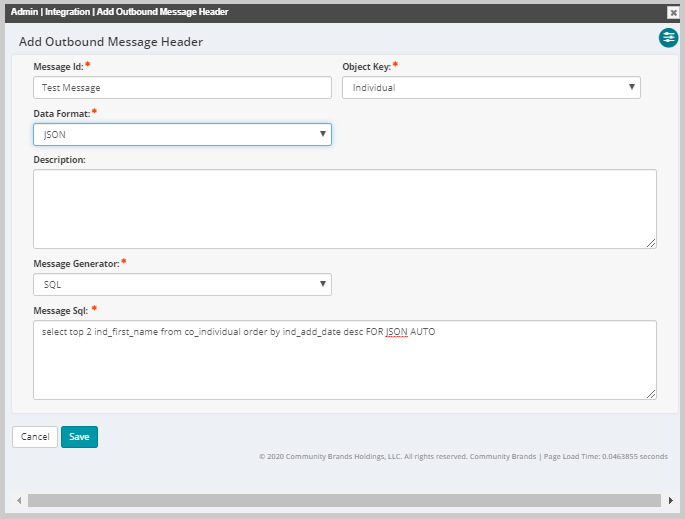
- This form contains fields like Message Id, Object Key, Data Format, Description, and Message Generator fields.
- Enter the values in the required fields and click Save. The added Outbound message will get displayed on the Webhooks Message child form.
- Note: Duplicate Message ID cannot be added in the Webhook Messages child form.

- To preview the message on the Webhook Message profile, click the Go To
 icon on the message field. This will display the Outbound Message Header profile.
 - On the Outbound Message Header profile, click the Edit tab and from the displayed list, click Preview. The Preview Output Message profile displays with the Sample Message depending on the selected Message Generator and Data Format while adding Outbound message.
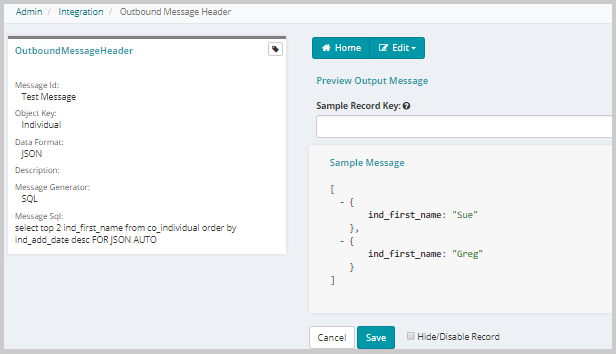
To create Webhook messages for Object.FieldList Message Generator:
- On the Add Outbound Message Header profile, enter the appropriate values in the Message ID, Object Key, and Data format fields.
- In the Message Generator field, select the Object.FieldList option.
- Click Save. The added Outbound message will get displayed on the Webhooks Message child form.
- Go to the Outbound message profile created, click the Go To
 icon on the message field. This will display the Outbound Message Header profile.
 - In the Message Fields child form, click the Add New Record
 icon to create new message field. This will display the Add Outbound Message Detail form.
 - Enter the value in the Field Name and Field Value fields. Field Name can be a reference name and Field Value should be the matching column name.
- For example: First name has a column value as ind_first_name in NetForum.
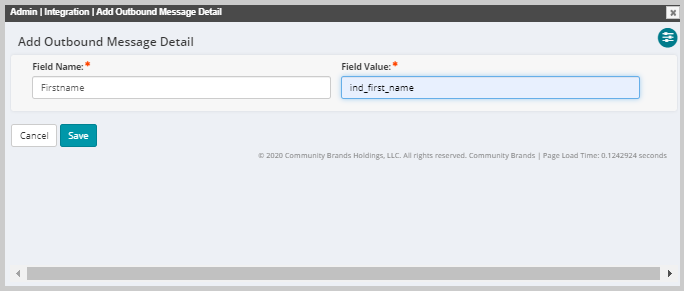
- Click Save. You can add as many Message fields as needed for your message.
- To preview the message on the Webhook Message profile, on the Outbound Message Header profile, click the Edit tab and from the displayed list, click Preview.
- On the displayed Preview Output Message form, enter a sample record key of the object for the sample message to display.
- The Sample message will be displayed in the Sample Message field depending on the selected Message Generator and Data Format while adding Outbound message.