Consortia Subscriptions
The Consortia Subscriptions icon allows the lead organization in the consortia to shop for subscriptions for all members of the consortia in one easy step.
Note: To see the Consortia Subscriptions icon, you must designate the organization as a consortia lead by clicking the Consortia? checkbox on the Organization profile.
To use the Consortia Subscriptions feature, complete the following steps:
- Go to Modules > CRM.
- Navigate to the profile for the lead organization of the consortium using the Find or List options.
- On the Organization profile, click the Add menu and then click the Consortia Subscriptions drop-down option.
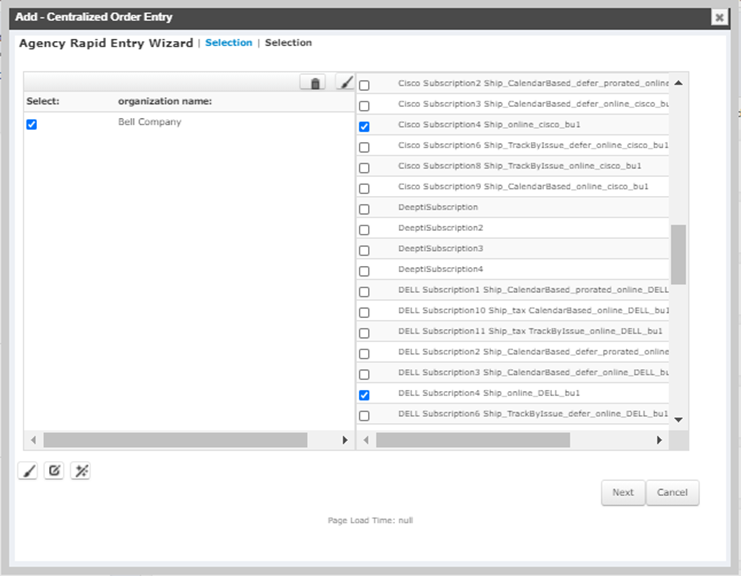
- Click the checkbox next to each organization you would like to purchase the subscription for.
- Click the checkbox next to each subscription you would like to purchase for each (selected) organization in the consortium.
- Click the Next button.
You will be presented with the Set Subscriptions | Fine Tuning pop-up window. This window displays a list of each organization (checked in step 4 of this process) in the consortium and each subscription that has been ordered for them.
If you wish to remove a subscription for a specific organization, click the Delete
 icon next to the line item you wish to remove from the invoice.
If you would like to edit the attributes of a specific line item (such as price, ship-to address, etc.), click the Edit
 icon next the desired line item.
To see just the line items for a specific organization in the consortium, expand the organization name drop-down menu. This drop-down menu lists all of the organizations in the consortium. Clicking the name of the desired organization will refresh the Fine Tuning page and only display the line items for the selected organization.
- Click the Next button to open the Consortia Subscriptions Payment form.
- Complete the payment information as you would for any other Centralized Order Entry order.
- Click the Save button.
Subscriptions purchased by the consortium will appear under the consortia purchases child form, which is located on the Subscriptions tab of the organization profile.
Note: All subscription purchases made by the consortium using the Centralized Order Entry method of purchasing subscriptions, will be displayed on the consortia purchases child form.
Certain line items on the consortia purchases child form have inactive (grayed out) folder icons, while others may have active folder icons. Clicking on an active folder icon next to a line item on the consortia purchases child form will open a grandchild form that displays any other products that were included with the original subscription purchase.
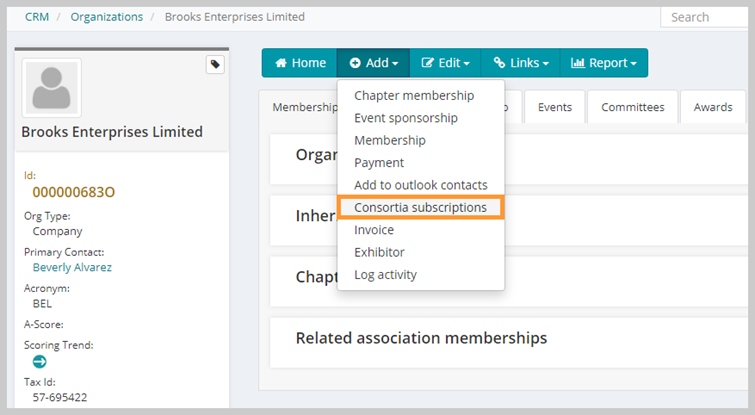
Note: Only the lead organization in the consortium will have the Consortia Subscriptions drop-down option available.
This will open the Agency Rapid Entry Wizard | Selection pop-up window. This window will display a list of organizations in the consortium along the left side, and all of the available subscriptions on the right.