Adding an External Document
External documents are those documents the committee wishes to be visible to eWeb users.
This topic covers the steps to add an external document to a committee.
Adding an External Document to a Committee
To add an external document to a committee, complete the following steps:
- Go to the Committee Profile.
- Click the Documents tab located in the child form section of the Committee Profile.
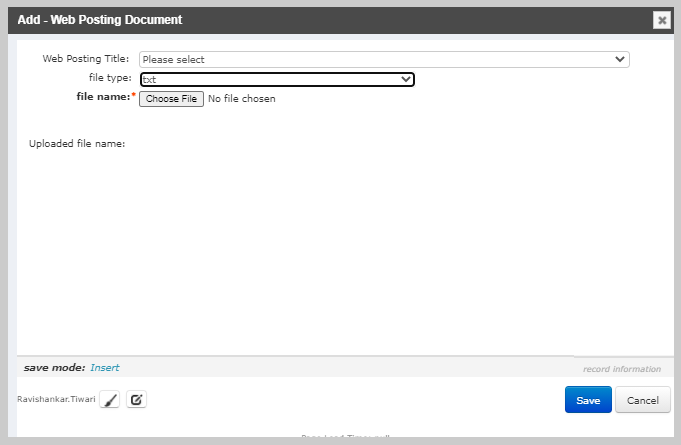
- Click the Add icon located on the External document child form. The Add - Web Posting Document pop-up window appears.
- Complete the following fields as needed.
| Fields | Required? | Description |
|---|---|---|
| Web Posting Title | No | Expand the drop-down menu and select the title to be used for the Web posting. Web posting titles are created in the CMS module. Once created they will appear in the Web Posting Title drop-down menu. |
| file type | No | Expand the drop-down menu and select the file type to be uploaded. The following file types are accepted: .txt, .doc, .docx, .xls, .ppt, and .pdf. |
| filename | Yes | Click the Browse button to locate the file to be uploaded on your hard drive or network drive. |
Click the Save button. The newly added external document appears in the external document child form.
Add the Web Posting Title you will use for an external document in the CMS module before attempting the steps above.