Adding Schedule Setup in Business Unit
In order to use Installment Payments while check out, you need to have various schedule interval options to be opted for installment Payment. To create these schedule, you have to enter these schedule details in Business Unit. By doing so, you will create schedule options which you can use against any product type or specific product as per your requirements or as you want to appear in eWeb for your customers.
To add schedule setup in Business Unit, complete the following steps:
- Open the Business Unit profile for which you want to add the schedule set.
- On the Business Unit profile, click Invoice terms tab.
- Click
 icon on the Schedule Setup field.
 - Select appropriate options as required from the relevant fields and then click Save button.
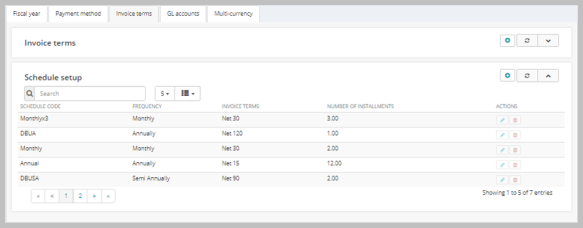
This will display Add - Schedule Setup window.

This will add a Schedule Setup to the list.