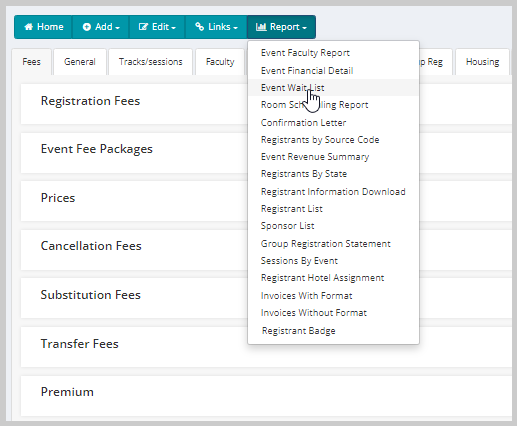
Adding a Report Link
Association staff users can customize the Report profile menu of a profile using the Edit in Form Designer menu option on the System Tools menu. This allows adding and configuring report link(s) to the Report profile menu and updating existing report link(s) as appropriate.
To add a report link to the Report profile menu of a profile:
-
Open the profile page on which you want to add a report link.
-
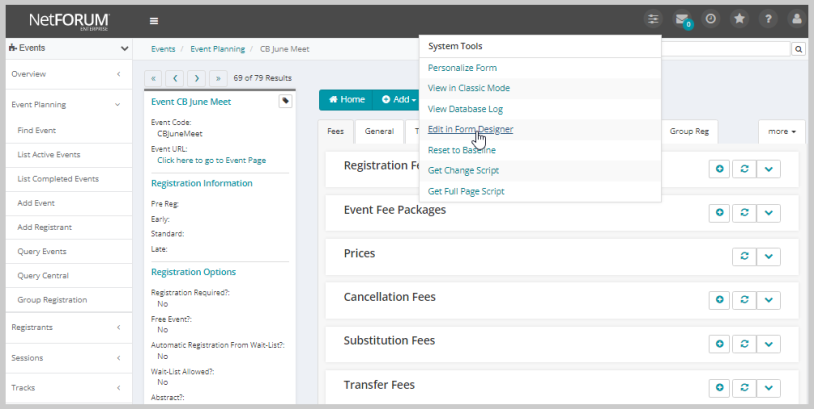
On the Profile page, click the System Tools (
 ) menu and the click the Edit in Form Designer link.
 -
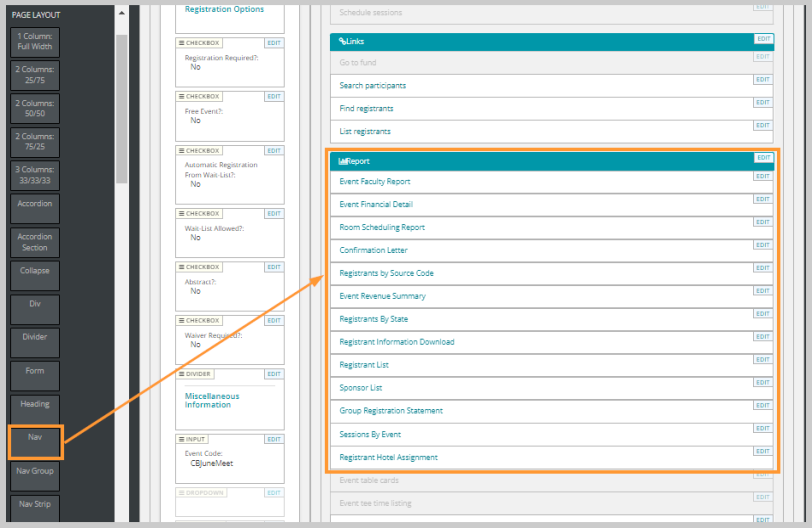
On the Form Designer, scroll down to the Report section.
-
From the Page Layout section on the left navigation pane, drag the NAV page layout element to the appropriate location on the Report section.
-
Click the Edit button on the Nav form element to open the Form Element Edit window. For more information on the Form Element Edit fields, refer the WidgetEditor topic.
-
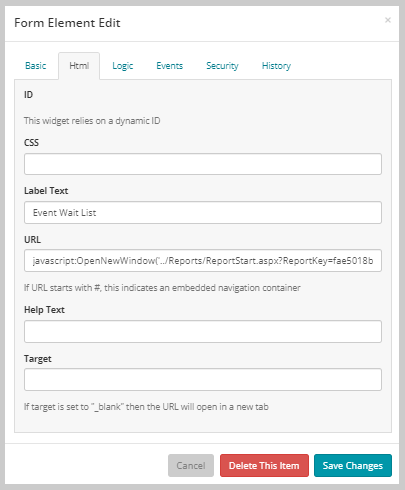
On the Form Element Edit window, click the Html tab.
-
Enter the label text in the Label Text field. This is the text that will display to the user and is typically the report name.
-
Enter the URL including the report key in the URL field as shown in the following example.
-
Click the Save Changes button when you have finished updating the field in the Form Element Edit form.
-
Click the Done button at the top of the left navigation pane to close the Form Designer page to return to the previous form.
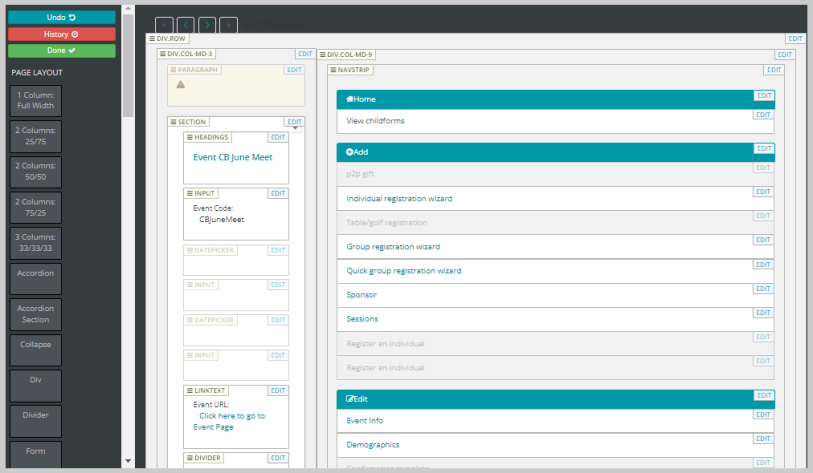
This will display the Form Designer page.
Example: javascript:OpenNewWindow('Reports/ReportStart.aspx?ReportKey=fae5018b-390a-4a6b-84bf-59a2f8c0d8bd')
The newly added report link will be displayed on the Report profile menu of the profile.