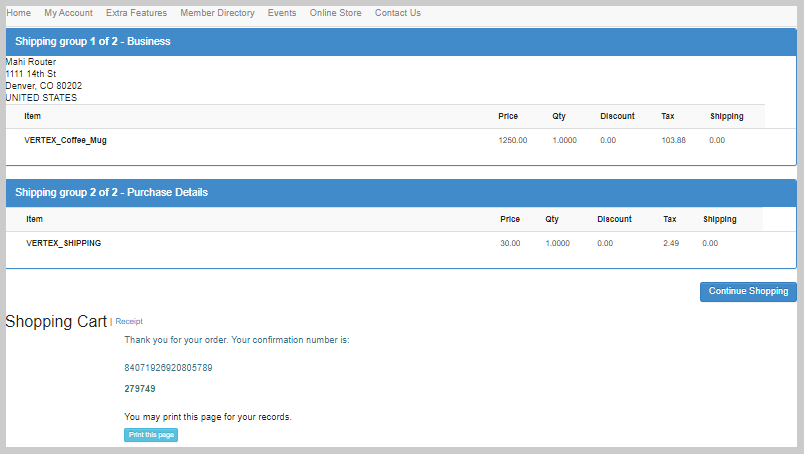
Purchasing a Taxable Product Using Vertex Integration
When a product is added to the shopping cart, NetForum checks whether the product is taxable, and the customer is not tax exempt. If the product is taxable and the customer is not tax exempt, then NetForum tries to determine the applicable tax for the product based on the shipping address of the order using the tax integration API with Vertex. This includes the shipping product. If the API responds successfully, then a tax invoice line item is added to the shopping cart. The price key (defines the GL and tax product code) is defined by the TaxIntegrationDefaultPriceKey or TaxIntegrationDefaultVATPriceKey system option.
Use Case 1: Purchasing a taxable product by a non-tax exempted customer
Prerequisites
- A non-tax exempted individual/organization must exist with valid address
- A taxable product must exist (taxable check box is checked while creating the product).
- A discount product (optional)
- A taxable shipping product (optional)
To purchase a taxable product:
- Login to iWeb and go to Individual profile.
- On the Individual profile, click the Add tab.
- From the displayed drop-down list, click Invoice. The Centralized Order Entry window appears.
- Click Add Product button. A menu of product types displays.
-
Click Merchandise link. (Merchandise is selected to explain the steps, you can select product as required.)
- On the Add Products window, search and add the taxable Merchandise product.
- Verify the amount and click Save & Finish button.
- Enter the payment related details and click Add Order button.
-
Click the Go To
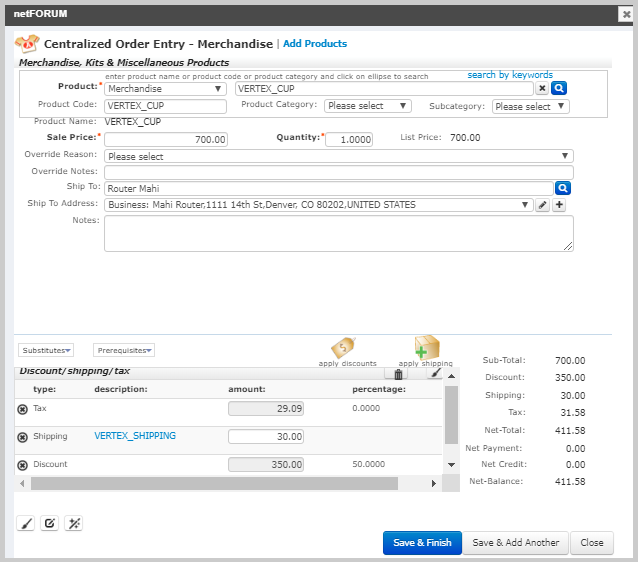
 icon on the invoice line item to navigate the Invoice profile and verify the tax and product cost details. The Tax is applicable based on the Zip Code of the shipping region.
Once the product displays in the product name field, you will see that tax is added automatically.
You can apply shipping charges and discount based on your requirements and the tax will be adjusted accordingly.
Important! When you apply discount to a taxable product, the tax will be calculated on the discounted price.
On the Individual profile, click Invoice tab and verify the invoice created in the Invoices (open batch) child form. Invoice contains taxes for shipping and merchandise item.
Use Case 2: Purchasing a taxable product by a tax exempted customer
Prerequisites
- A tax exempted organization must exist with valid address
- A taxable product must exist (taxable check box is checked while creating the product).
- A taxable shipping product (optional)
Important! If the customer is tax-exempt, tax will not be applied on the line item.
To purchase a taxable product:
- Login to iWeb and go to Organization profile.
- On the Organization profile, click the Add tab.
- From the displayed drop-down list, click Invoice. The Centralized Order Entry window appears.
- Click Add Product button. A menu of product types displays.
- Click Merchandise link.
- On the Add Products window, search and add the taxable Merchandise product.
- Once the product displays in the product name field, you will see that no tax is added in the tax field.
- Verify the amount and click Save & Finish button.
- Enter the payment related details and click Add Order button.
- Click the Go To icon on the invoice line item to navigate the Invoice profile and verify the tax and product cost details. Since the customer was tax exempted, hence no tax is applied on the purchase of the taxable product.
You can apply shipping charges based on your requirements.

On the Organization profile, click Invoice tab and verify the invoice created in the Invoices (open batch) child form.
Use Case 3: Purchasing a taxable product in eWeb
Prerequisites
- A non-tax exempted Individual/Organization must exist with eWeb login credentials.
- A taxable product must exist with sell online check box selected
- A taxable Shipping product must exist with sell online check box selected (it is optional based on your requirements)
To purchase a taxable product in eWeb:
- Login to eWeb with valid credential.
- Go to Online Store tab at the top and search the Merchandise product in the Search field.
- Click the Merchandise product to open the profile.
-
On the Merchandise product click Add To Cart button.
- On the Shopping Cart view page, verify the product details and you will see line items contains taxes for shipping and merchandise item.
- Click the Check-Out button.
- On the Shopping Cart Payment page, Select Payment method as required and click Continue button.
- On the Shopping Cart Confirm your order page, verify the tax applied automatically on the merchandise product and then click Submit Order button.
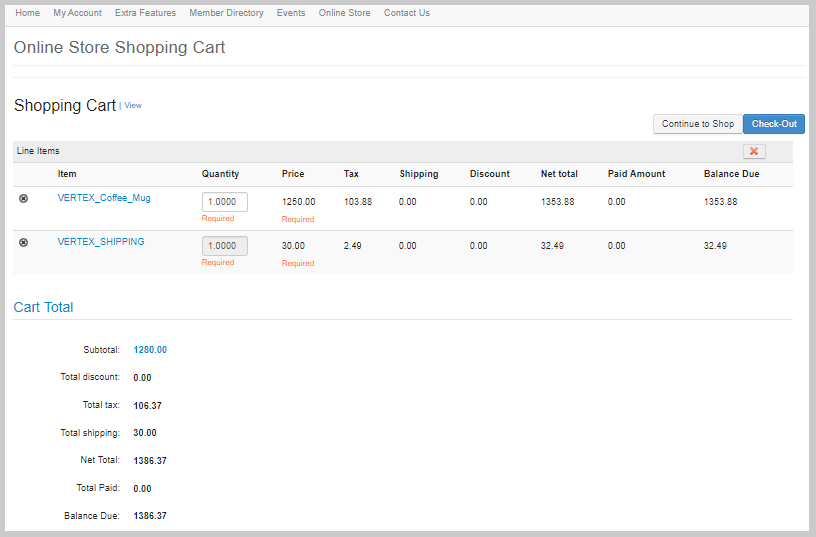
The Shopping Cart Receipt page will be displayed with the purchase details.