BluePay Mobile Payment Processing
| Important! This functionality has been deprecated since BluePay no longer supports payment processing through the BluePay Mobile app. |
BluePay Mobile Processing in NetForum will give user an ability to make payment transaction using a mobile device with BluePay Mobile Processing App installed and EVM Contact or Swipe machine configured with this App. This will help your association to manage payment transactions in a better way, with a flexibility to use at an event or a fundraiser campaign. To enable this feature for your association, refer Enabling BluePay Mobile Payment in NetForum page.
Note: The steps described in this topic are performed on iPad. This may vary with other devices like mobile or tablet and may defer with operating systems.
To process a Credit Card payment using Mobile device in NetForum, complete the following steps:
- Log into iWeb on a mobile device.
- Go to the individual or organization profile and tap Add tab.
- Tap Add invoice from the drop-down list.
- Add product(s) in the Centralized Order Entry page.
- Select appropriate Business unit from the Batch drop-down list.
- Select prepaid option from the Type drop-down list.
- Select BluePay_cc option from the Payment Method drop-down list. This will populate the Enter Payment Details and Enter Payment Details Via Mobile App button.
- Tap Enter Payment Details Via Mobile App button.
Important! Make sure that you have configured the account setting in the BluePay Mobile Application, before carrying out payment transaction in NetForum.
If you are using iWeb on PC or Laptop, then Enter Payment Details Via Mobile App button will not appear.

This will display the Hosted/Mobile Payment page.
- Tap Click here to Launch Mobile App link.

- Tap Open in "BluePay Mobile" link from the displayed page.
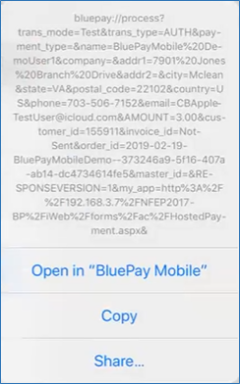
This will launch the BluePay Application automatically and you will be directed to below page to process the transaction. The amount and customer information will automatically pass in the BluePay Application from NetForum.

- Enter the Card details in the appropriate field and tap Process Charge button.
Important! If you wish to use EVM Contact or Swipe machine for the transaction, then tap Process Charge button without entering the card details.
A pop-up window shown below will be displayed.
- Select the appropriate option from the transaction types available on the screen.
To setup and use of EVM Contact or Swipe machine for the transaction, refer BluePay Credit Card processing page.

Once the credit card is processed in the BluePay App, you will be directed back to the NetForum iWeb page. This page will display the details of the transaction like Result, Transaction No and other relevant details.
- From the displayed page, Tap Close button.

This opens Hosted/Mobile Payment page.
- From the displayed page, tap Close button.

This will display the COE page. Note that Enter Payment Details and Enter Payment Details Via Mobile App buttons are disabled, because the payment transaction was completed.

You will be auto-directed to the individual profile page.
Verifying payment details
- To verify payment transaction in BluePay, refer Processing payment with BluePay Hosted Gateway page.
- To verify payment transaction in iWeb, complete the following steps:
- Go to the individual profile, tap more tab.
- From the drop-down list, tap payments.
- Tap
 icon on the Payments (open batch) field to check payment details.